Use an asset in code
Beginner Programmer
There are a few ways of using assets in code:
- Referencing - the easiest way, creates an assignable reference in the Property grid.
- Url reference - creates an assignable reference in the Property grid, but let's you handle loading and unloading manually (most commonly used with scenes).
- Loading directly - a manual way of loading assets without having to assign anything in the Property grid.
Referencing an asset
The easiest way of using an asset in your own script is to create an assignable reference using a public property or field.
public class Example : StartupScript
{
    public Model ModelAsset { get; set; }
}
The above will show up in the Property grid like so:
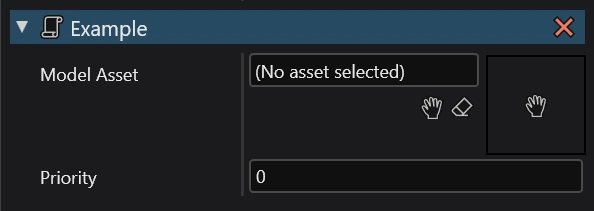
Stride will automatically handle loading and unloading. If you want more control over how assets are loaded, consider using url references instead.
Url reference
Url references provide a way of assigning an asset in the Property grid without loading it.
You can create an assignable url reference to an asset in your own script by using UrlReference<T>, where T is the asset type you want to use.
public class Example : StartupScript
{
    public UrlReference<Model> MyAssetReference { get; set; }
}
It will show up in the Property grid like so:
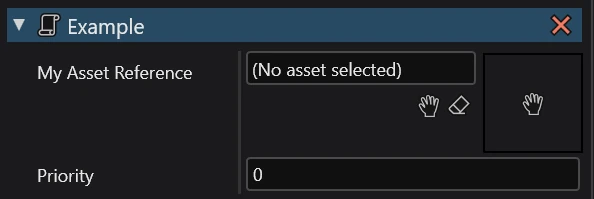
The asset can be loaded via the content system by using Content.Load or Content.LoadAsync and then unloaded using extension method Content.Unload.
Note
These methods require Stride.Core.Serialization in order to become available.
using Stride.Core.Serialization;

public override void Start()
{
    var asset = Content.Load(MyAssetReference);
}

public override void Cancel()
{
    Content.Unload(MyAssetReference);
}
Warning
When assets are loaded manually, they have to be manually unloaded too, or else Stride will keep the assets in memory forever.
Loading directly
All of your project's assets can be accessed directly through code using the autogenerated Assets class. It contains references to all assets that are available in the build.
Note
These methods require Stride.Core.Serialization in order to become available.
using Stride.Core.Serialization;

public override void Start()
{
    var loadedModel = Content.Load<Model>(Assets.Models.Sphere_Model);
}

public override void Cancel()
{
    Content.Unload(Assets.Models.Sphere_Model);
}
Warning
You might have to rebuild your project and reload your IDE for an asset to show up. If it still appears missing, it means that it's not being included in the build. For more information visit Missing assets.
Alternatively, you can use the content system to load assets based on their path using Content.Load<T> or Content.LoadAsync<T> and then unload them using Content.Unload.
public override void Start()
{
    var loadedModel = Content.Load<Model>("path/to/asset");
}

public override void Cancel()
{
    Content.Unload("path/to/asset");
}
Warning
When assets are loaded manually, they have to be manually unloaded too, or else Stride will keep the assets in memory forever.
Missing assets
The asset compiler only knows which assets to include in the build based on their references. When loading assets directly, Stride doesn't know that the asset is needed.
To fix this, you can mark the missing assets as root to make sure they are always included in the build, or try using url references instead.