Asset compilation
Beginner
In order to optimize on file space and speed up loading times, Stride converts project assets into bundles. This is something that many game engines do, however Stride has a unique approach to determining which assets get included. It's a fairly simple process, but it's important to familiarize yourself with it to avoid confusion.
Which assets are compiled
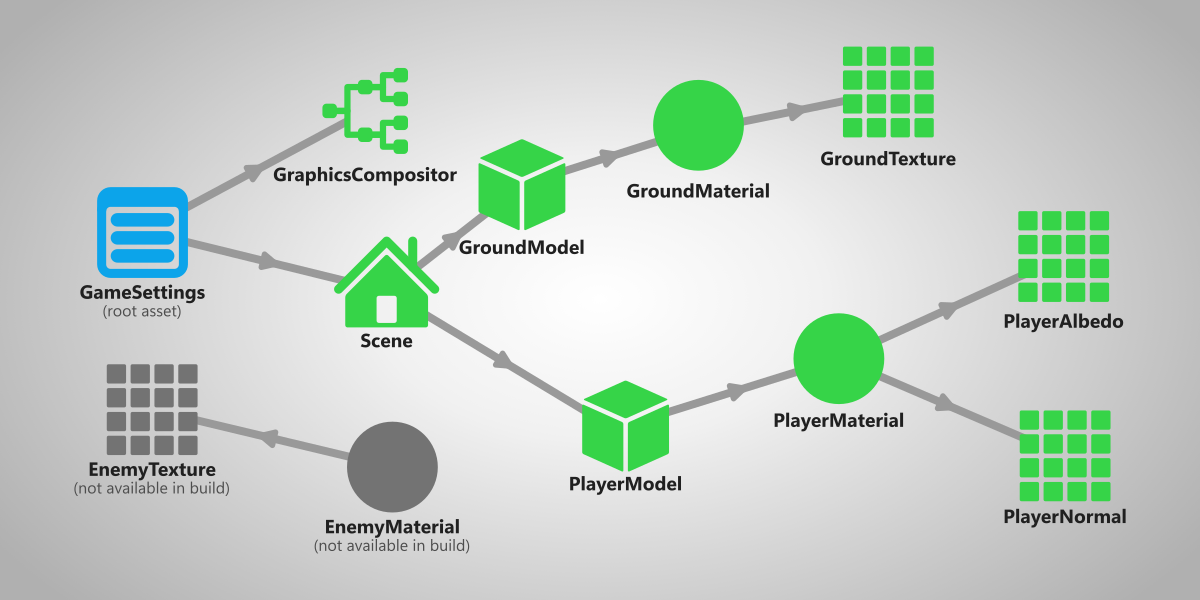
Stride only compiles assets which are used in the game. This means that if an asset isn't referenced by another asset that is determined as needed, it will be ignored.
Blue, green and gray dots
In the Asset view, you can see a dot in the top left corner of every asset that signifies how it will be compiled.
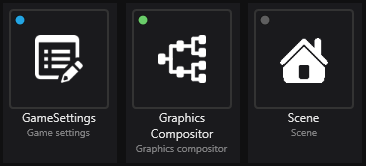
Each color represents something:
- 🔵 Blue (will be compiled) - this asset is marked as root, meaning that it will always be compiled in the game no matter if it's referenced or not.
- 🟢 Green (will be compiled) - this asset is referenced by another asset that is used in the game, meaning that it will be compiled.
- 🟡 Yellow (will be compiled) - this asset will be included in the build, but its contents will be replaced by another asset. For more information, visit Replacement assets.
- ⚫ Gray (won't be compiled) - this asset isn't referenced by any other asset that's used in the game, meaning that it won't be compiled.
Root assets
🔵 Root assets are assets that will always be compiled, no matter if they are referenced or not.
A few remarks:
- Root assets can be defined in a project package to which they belong or any other project package that uses it as a dependency.
- You can only mark individual assets as root, not folders.
How to mark an asset as root
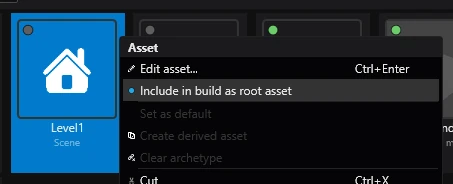
You can mark an asset as root by right clicking on it in the Asset view and selecting 🔵 Include in build as root asset.
Warning
For project created before Stride 4.4: Marking an asset as root in Game Studio will only mark it for the selected platform. Make sure to either:
- Mark the asset as root for every platform your project targets
- Edit the main project package's
.sdpkgfile manually. For more information, visit the package properties page.
Checking assets
You can use Content.FileProvider.ContentIndexMap to check what assets are available.
if (Content.FileProvider.ContentIndexMap.Contains("Models/Enemy"))
{
    // Execute code if the asset exists
}

var allContent = Content.FileProvider.ContentIndexMap.GetMergedIdMap()
    .Select(x => x.Key);
Note
The content system also contains shaders and shader information. If you want to use GetMergedIdMap to check which assets are loaded, consider filtering out paths that start with shaders/ and __shaders_bytecode__/.
var allAssets = Content.FileProvider.ContentIndexMap.GetMergedIdMap()
    .Select(x => x.Key)
    .Where(x => !x.StartsWith("shaders/") && !x.StartsWith("__shaders_bytecode__/"));