Assets
Warning
申し訳ありません。このページの日本語訳はございません。英語で表示いたします。
Beginner
Assets are representations of elements in a project (such as scenes, textures or audio), which can be used by scripts or other assets. An example would be the model component using a model asset.
Resources on the other hand are the files containing actual data (such as images or music), which can be used by assets.
In short:
- Resources - raw data files (
.png,.wav,.fbx). - Assets - usable elements in the game. They can use resource files and contain additional properties.
Blue, green and gray dots
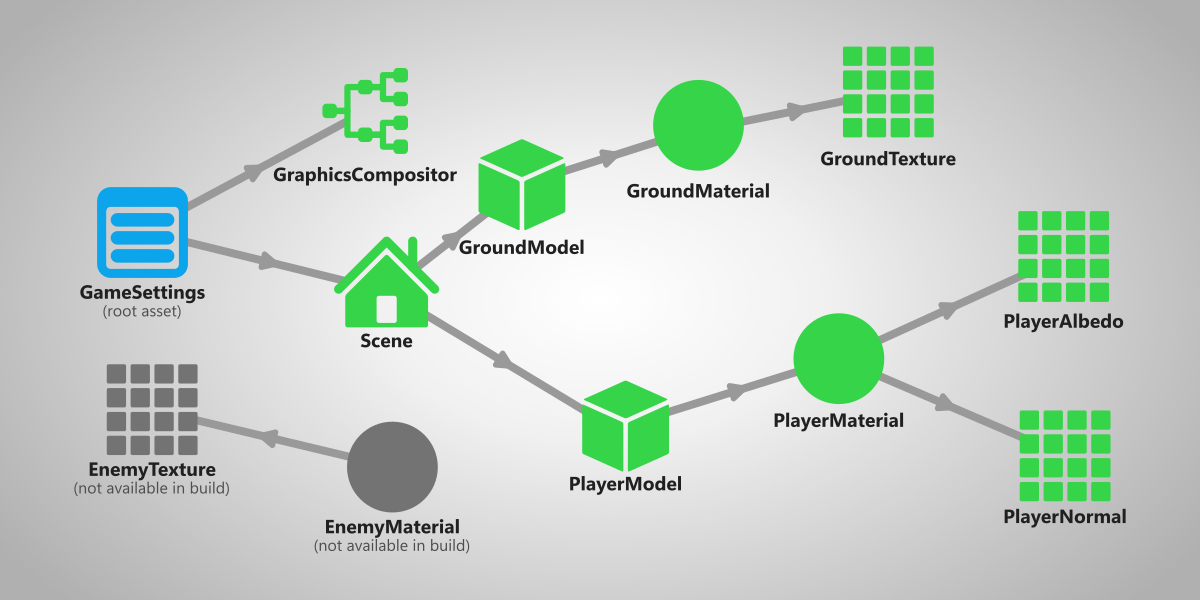
Stride only compiles assets which are used in the game. This means that if an asset isn't referenced by another asset that is determined as needed, it will be ignored.
In the Asset view, you can see a dot in the top left corner of every asset that signifies how it will be compiled.
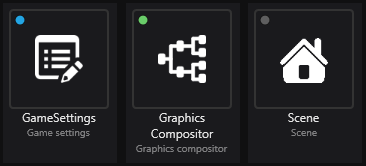
Each color represents something:
- 🔵 Blue (will be compiled) - this asset is marked as root, meaning that it will always be compiled in the game no matter if it's referenced or not.
- 🟢 Green (will be compiled) - this asset is referenced by another asset that is used in the game, meaning that it will be compiled.
- 🟡 Yellow (will be compiled) - this asset will be included in the build, but its contents will be replaced by another asset. For more information, visit Replacement assets.
- ⚫ Gray (won't be compiled) - this asset isn't referenced by any other asset that's used in the game, meaning that it won't be compiled.
For more information about how assets are compiled, visit Asset compilation.
Location of assets and resources
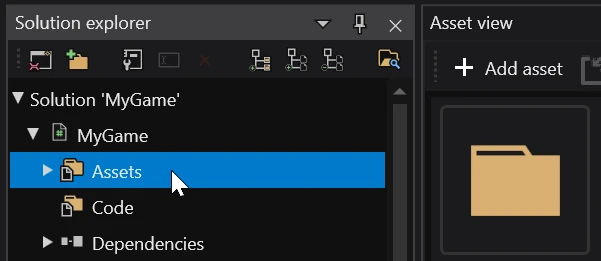
In Game Studio you can view assets in the Asset view by selecting an Assets folder in the Solution explorer.
As for resources, it isn't possible to view them in Game Studio. You can browse through them by opening the directory containing your project and going to a resource folder of a project package.
For more information, visit Project file structure.