Asset bundles
Warning
申し訳ありません。このページの日本語訳はございません。英語で表示いたします。
Advanced Programmer
After compilation, assets are turned into asset bundles. By default, only one asset bundle is created, but this can be changed in order to, for example: separate DLC content into it's own bundle, so that it could be sold separately.
When the game starts, Stride only loads the default bundle. Other bundles need to be loaded manually through code.
Create an asset bundle
Note
Currently, this has to be done manually.
In order to create new asset bundles, you'll have to modify the .sdpkg file of a project package. For more information, visit Project package properties.
Bundles are defined under the Bundle property. Each bundle has a Name, a list of Dependencies on other bundles and a list of Selectors that specify which assets belong to the bundle.
There are 2 types of selectors:
- 🏷️ Tag selector - selects assets that have at least one of the specified
Tags. - 📁 Path selector - selects assets based on the provided list of
Paths. Filters work similarly to the.gitignorefiltering convention with a few exceptions:!(negations),[](groups) and#(comments). This means that you can select individual files, entire folders or files with a specific extension.
Here's an example configuration:
Bundles:
 - Name: CustomBundleA
   Selectors:
    - !TagSelector
      Tags:
        - MyTag1
        - MyTag2
 - Name: CustomBundleB
   Dependencies:
    - CustomBundleA
   Selectors:
    - !TagSelector
      Tags:
        - MyTag3
        - MyTag4
    - !PathSelector
      Paths:
        - folder1/
        - /folder2/
        - *.sdtex
        - folder3/*.sdscene
Caution
If any of your custom bundles are empty, Stride will fail to build the game.
Root assets
It's important to note that assets from optional bundles (such as DLC content) shouldn't be referenced by assets from the default bundle. If the other bundle is missing, Stride will fail when trying to load it's assets.
However, if a bundle's assets are unreferenced, Stride will not compile them. To prevent this, make sure to mark the appropriate assets (such as scenes) as root. The assets will then be accessible in code.
For more information about root assets, visit Asset compilation.
Compiling behaviour
Stride tries to place assets in the most appropriate bundle.
- Assets not defined in
Bundlesare placed in the default bundle, which is loaded automatically when the game starts. - If an asset is selected by BundleA and BundleB, but BundleB has a dependency on BundleA, that asset is placed only in BundleA.
- If an asset is selected by BundleA and BundleB and neither of them are dependent on each other, that asset is placed in both of them.
Note
Loading two bundles with the same asset won't result in a duplicate.
Loading bundles
Stride automatically loads the default bundle. However, other bundles need to be manually loaded through code using LoadBundle.
await Content.FileProvider.ObjectDatabase.LoadBundle("NameOfBundle");
Note
When loading a bundle, it's dependencies are loaded automatically.
Assets can then be loaded via the content system. For more information, visit Use an asset in code.
Bundle location
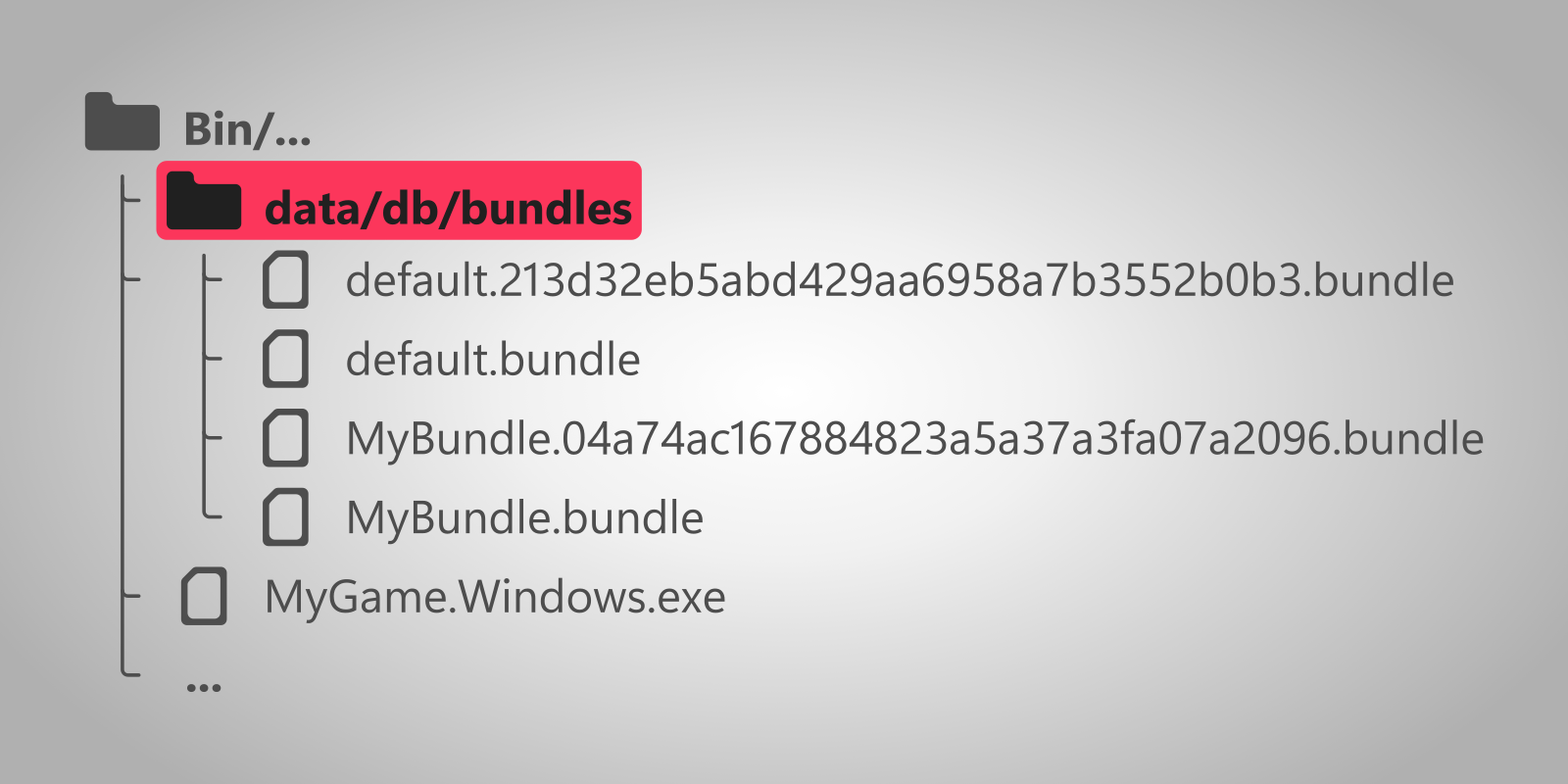
Bundles are located in data/db/bundles next to the built executable. You can recognize them by their name.
For more information about the build location, visit Build file structure.
Note
Bundles tend to be split into multiple files that start with the same name.