Assets
Beginner
An asset is a representation of an element of your game, such as texture, animation or model.
Create an asset
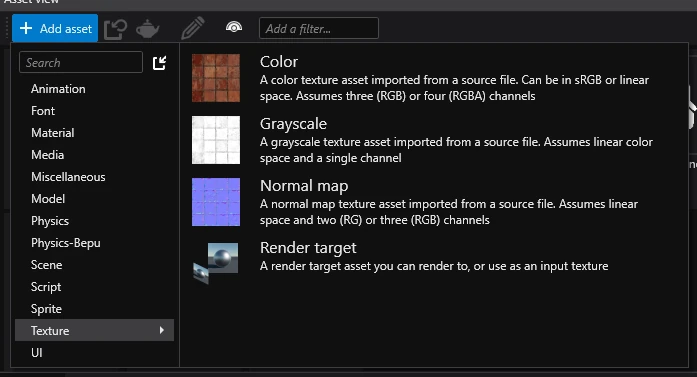
To create an asset, click the ➕ Add asset button in the Asset view and select the type of asset you want to create.
Create assets from resources
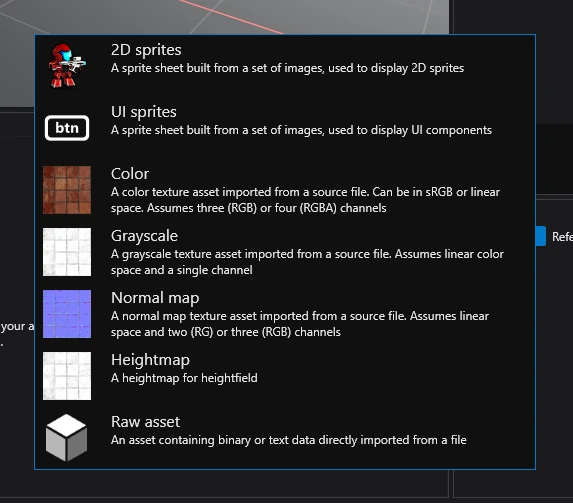
To create an asset from a resource, simply drag and drop it into the Asset view and select the type of asset you want to create.
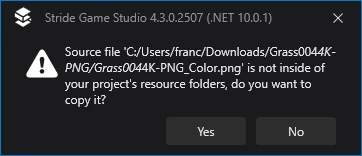
If the resource isn't present in the resources folder, Game Studio will ask you if you want to move it there. In the majority of cases, you will want to click yes.
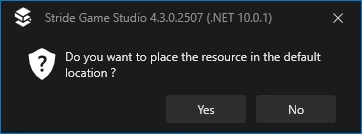
Finally, you will be asked if you want to move it to the default location. Again, most of the time you will want to do this, unless you need more control over where resources end up.
Blue, green and gray dots
In the Asset view, you can see a dot in the top left corner of every asset that signifies how it will be compiled.
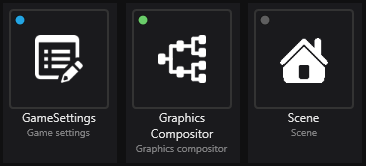
Each color represents something:
- 🔵 Blue (will be compiled) - this asset is marked as root, meaning that it will always be compiled in the game no matter if it's referenced or not.
- 🟢 Green (will be compiled) - this asset is referenced by another asset that is used in the game, meaning that it will be compiled.
- 🟡 Yellow (will be compiled) - this asset will be included in the build, but its contents will be replaced by another asset. For more information, visit Replacement assets.
- ⚫ Gray (won't be compiled) - this asset isn't referenced by any other asset that's used in the game, meaning that it won't be compiled.
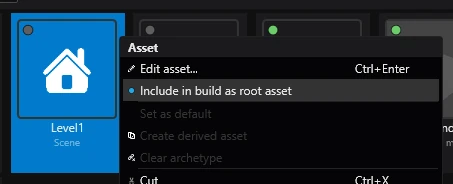
Stride doesn't include assets which aren't used anywhere, meaning that they cannot be accessed when running the game. In order to ensure, that an asset will always be included in the build, right click on it and select 🔵 Include in build as root asset.
Further reading
For more information, visit Assets.