Install the editor using Wine
Intermediate
Even though you can compile and run Stride games on Linux, the editor remains Windows-exclusive, due to using WPF as its UI framework. However, starting with version 4.4.0-beta5, it is now possible to use the editor on Linux using a compatibility layer, such as Proton.
Note
The editor is being rewritten to be cross-platform.
Warning
Running Game Studio through a compatibility layer is not supported! Expect to run into issues along the way.
Limitations
- You may experience graphical glitches in the editor.
- An update to the engine may break your setup.
- Building from the editor doesn't work. You will have to test your game by building it natively.
- The command
stride studiowon't be able to open the editor.
Preamble
Although it is possible to run Game Studio using Wine, the experience is far better on Proton. In this guide, we will be using ge-proton11-5 which is the latest version of GE-Proton as of writing.
Additionally, this guide will provide detailed instructions for Bottles — a Wine/Proton manager. If you wish to use a different application such as UMU Launcher or Heroic Game's Launcher, the general steps should still apply.
Prerequisites and preparation
Before getting started, ensure your Linux system is ready.
Install Bottles. You can download it from flathub.
Install Linux prerequisetes. To learn more, visit Setup and requirements.
Install .NET 10 SDK for Linux. Download and install the latest Long-Term Support (LTS) version of .NET (currently .NET 10). See Install .NET on Linux for more information.
Install Stride.CLI. This tool will allow you to manage different versions of the engine on your Linux machine, without the use of a launcher.
dotnet tool install -g stride.cli # Install the CLI toolFor more information about the Stride CLI tool, visit Stride CLI
Additionally, you will have to download a few Windows applications.
- Download the .NET 10 SDK installer for Windows. We will have to install it using the compatibility layer in order for Game Studio to work. You can get it from this page.
- Download the Stride installer. We only actually need it for installing Stride's Windows prerequiseties. You can get it from the official website.
Installation steps
Install a Proton runner. Open Bottles and install Proton by going to Menu (located in the top right corner) > Preferences > Runners. In this guide, we will be using
ge-proton11-5, but we generally recommend sticking with the latest version.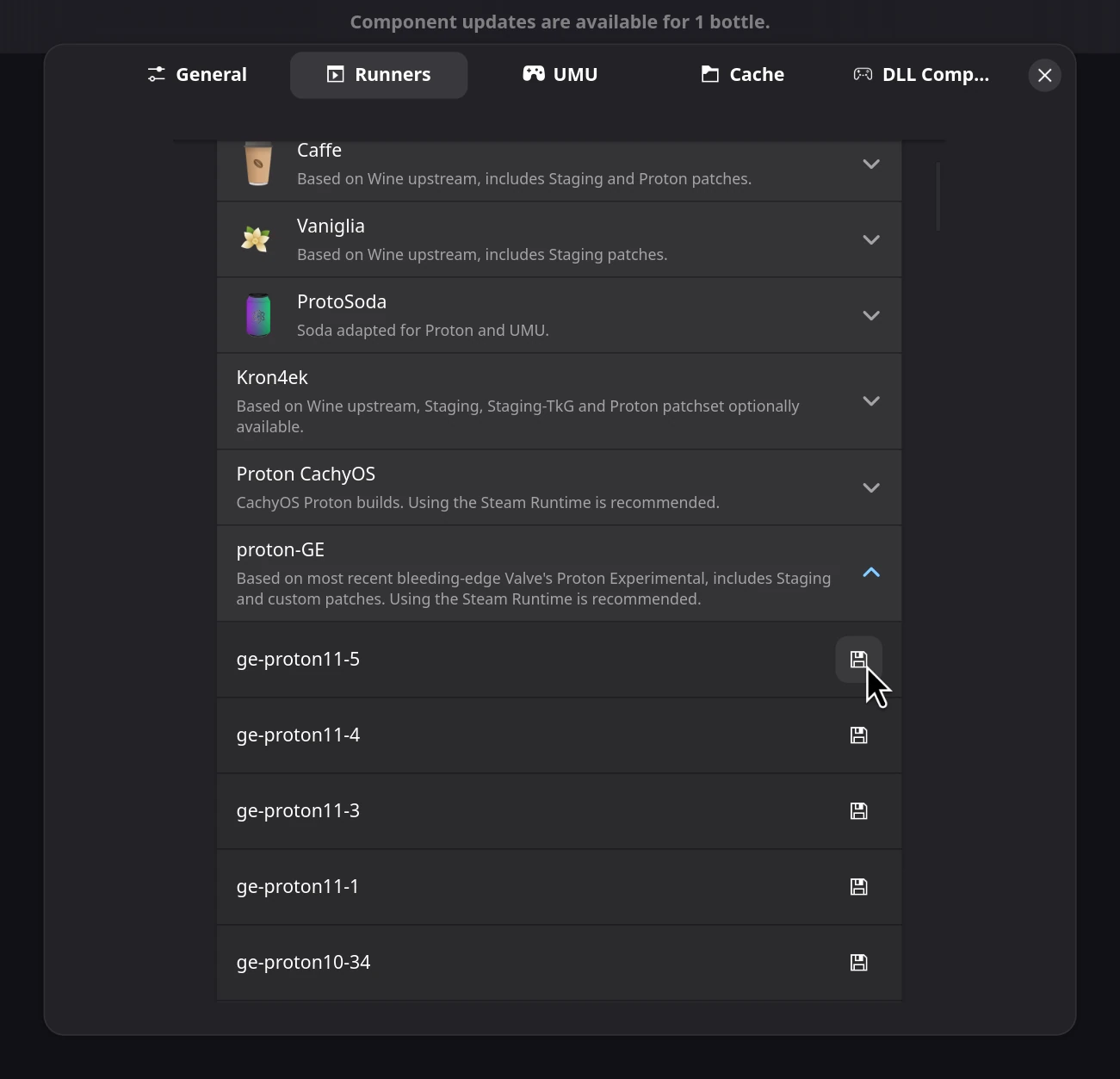
Note
You can always change the version of Proton/Wine later.
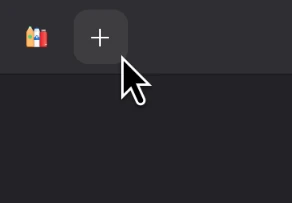
Create a new prefix. You can do this in Bottles by pressing the ➕ button in the top left corner.
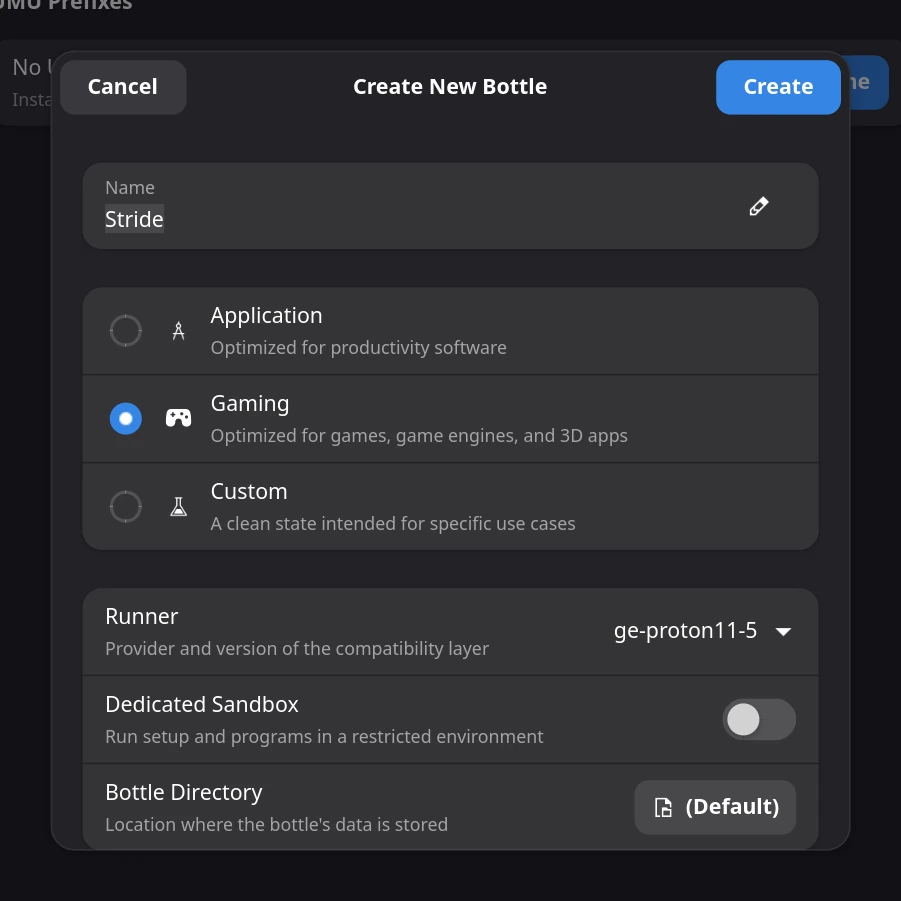
Give your bottle (prefix) a name and make sure to select the correct Proton runner.
After the bottle finishes being created, click it to enter it.

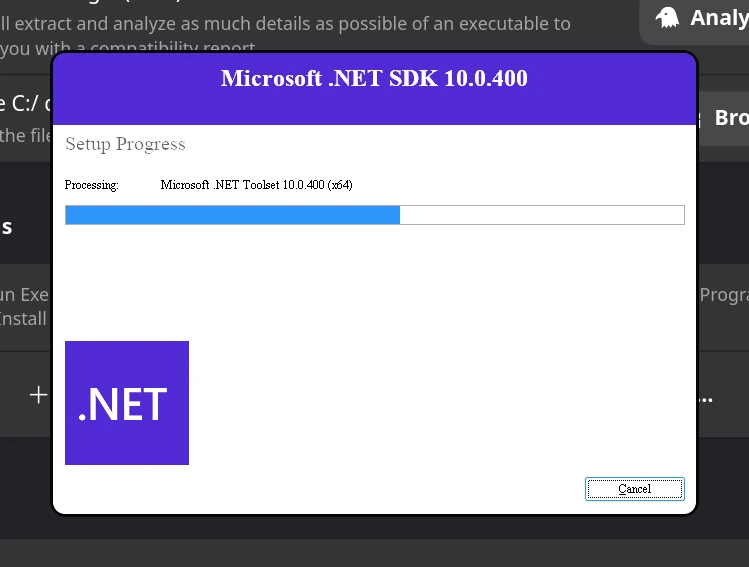
Run the .NET 10 SDK installer for Windows using Proton. In Bottles, click ▶️ Run Executable... and select the
.exefile for the SDK installer. If you missed this step in prerequiseties, you can get the installer from this page.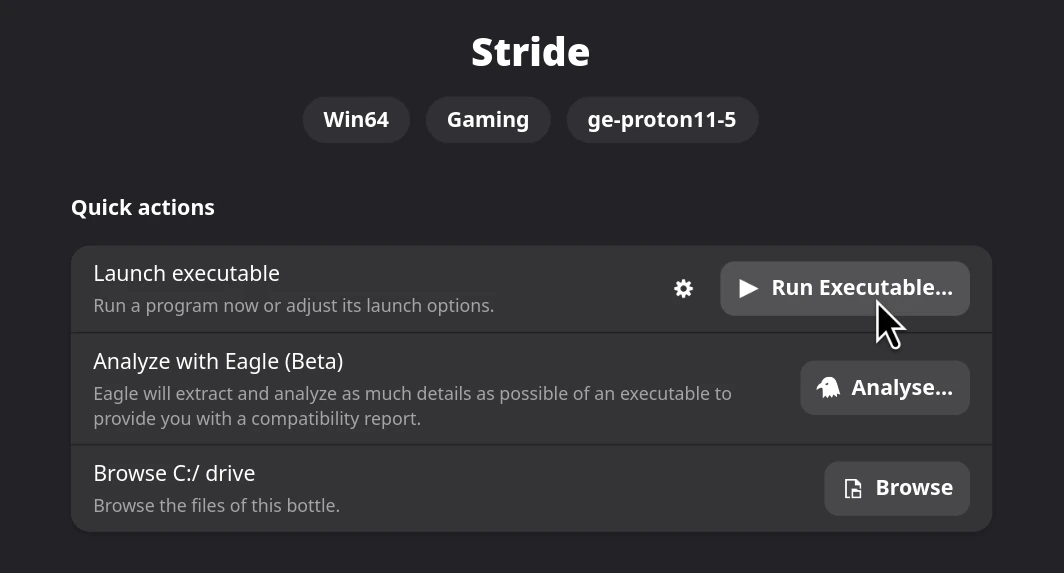
Follow the on-screen instructions to complete the installation.
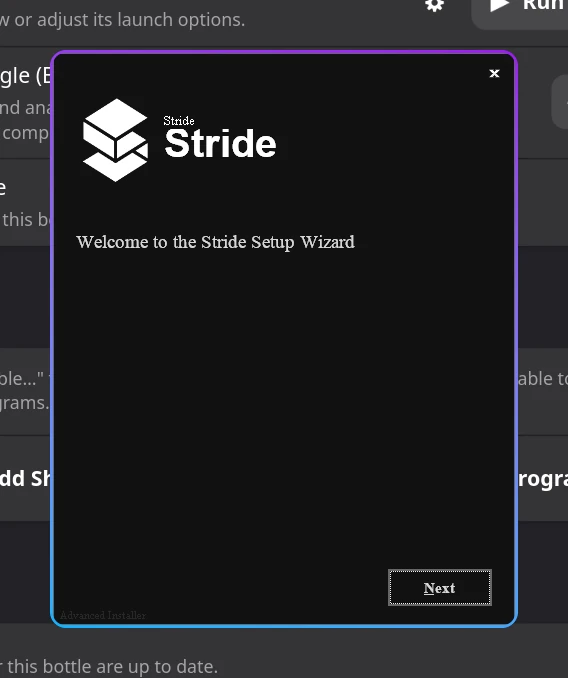
Run the Stride installer. In Bottles, click ▶️ Run Executable... and select the
StrideSetup.exefile. If you missed this step in prerequiseties, you can get the installer from this page.Follow the on-screen instructions until the installation succeeds or crashes (it should be okay as long as it managed to install the prerequiseties).
Install the engine on your system. Stride CLI lets you manage installations of the engine directly through the command line. We will use it in order to download the editor application.
# Install the latest version (including betas)
stride sdk install --prerelease
Create a symlink with the system nuget cache. The editor needs access to the nuget cache folder. In most Linux distributions, its located in
~/.nuget.For Bottles, click the button next to Browse C:/ drive and locate your user folder (should be in
drive_c/users/<nameOfUser>).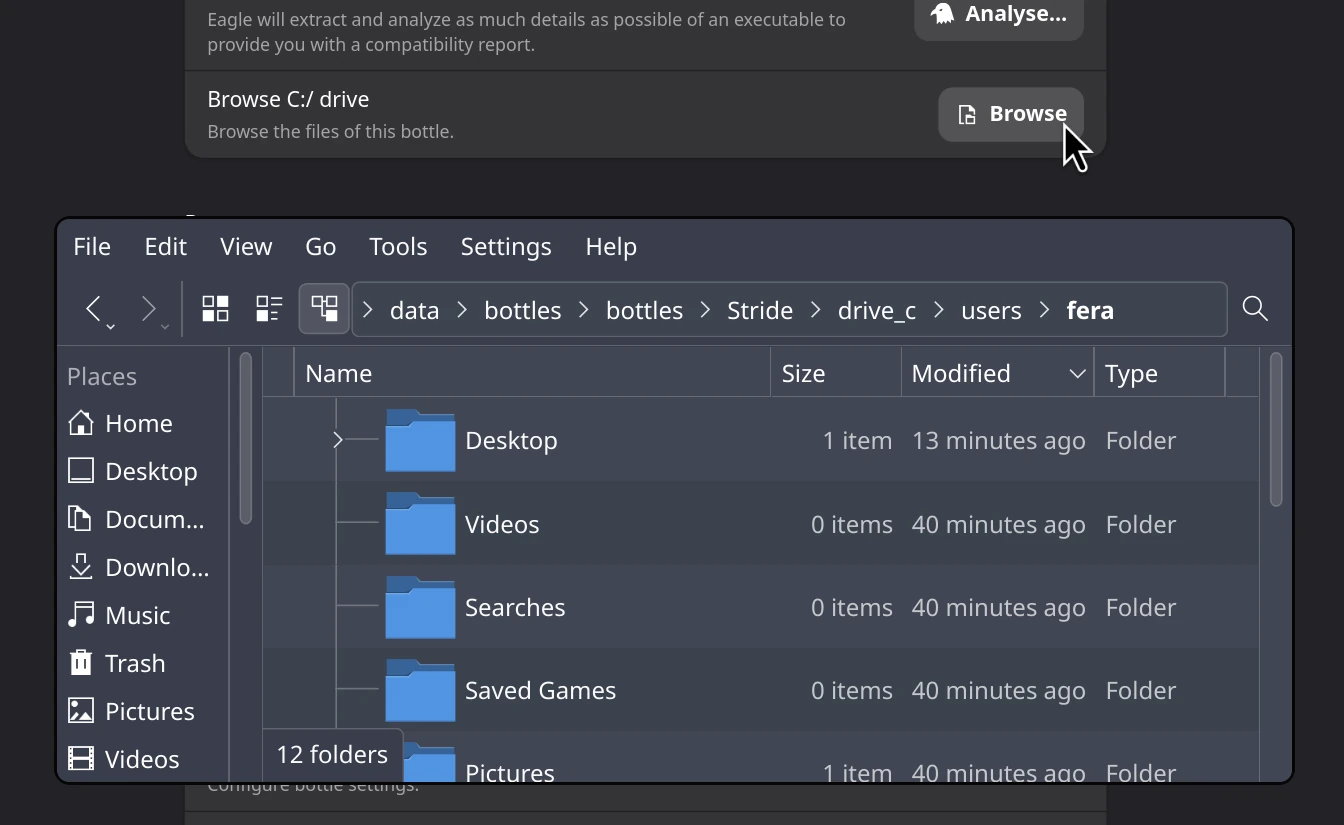
Open the terminal in your user folder and create a symlink with the following command:
ln -s ../../../path/to/system/user/folder/.nuget .nugetWarning
For bottles and all flatpak applications, the symlink needs to be relative!
Install required nuget packages. We will also have to download a few packages to the cache. The easiest way of doing this is to:
Create a new C# project
dotnet new classlib -n StrideProtonFix && cd StrideProtonFixEdit the
.csprojfile and add references to the packages<ItemGroup> <PackageReference Include="runtime.any.System.Runtime" Version="4.3.0" /> <PackageReference Include="runtime.any.System.IO" Version="4.3.0" /> <PackageReference Include="runtime.win.System.Diagnostics.Debug" Version="4.3.0" /> <PackageReference Include="runtime.any.System.Reflection.Primitives" Version="4.3.0" /> <PackageReference Include="runtime.any.System.Diagnostics.Tools" Version="4.3.0" /> <PackageReference Include="runtime.any.System.Text.Encoding.Extensions" Version="4.3.0" /> <PackageReference Include="runtime.any.System.Globalization.Calendars" Version="4.3.0" /> <PackageReference Include="runtime.any.System.Globalization" Version="4.3.0" /> <PackageReference Include="runtime.win.Microsoft.Win32.Primitives" Version="4.3.0" /> <PackageReference Include="runtime.win.System.Net.Primitives" Version="4.3.0" /> <PackageReference Include="runtime.win.System.Console" Version="4.3.0" /> <PackageReference Include="runtime.any.System.Reflection.Extensions" Version="4.3.0" /> <PackageReference Include="runtime.win.System.Runtime.Extensions" Version="4.3.0" /> <PackageReference Include="System.Security.Principal.Windows" Version="4.3.0" /> <PackageReference Include="System.Private.Uri" Version="4.3.0" /> <PackageReference Include="runtime.any.System.Text.Encoding" Version="4.3.0" /> <PackageReference Include="runtime.any.System.Runtime.Handles" Version="4.3.0" /> <PackageReference Include="runtime.any.System.Reflection" Version="4.3.0" /> <PackageReference Include="runtime.any.System.Resources.ResourceManager" Version="4.3.0" /> <PackageReference Include="runtime.win.System.Net.Sockets" Version="4.3.0" /> <PackageReference Include="System.Net.NameResolution" Version="4.3.0" /> <PackageReference Include="runtime.any.System.Threading.Timer" Version="4.3.0" /> <PackageReference Include="runtime.any.System.Threading.Tasks" Version="4.3.0" /> <PackageReference Include="runtime.any.System.Diagnostics.Tracing" Version="4.3.0" /> <PackageReference Include="runtime.any.System.Collections" Version="4.3.0" /> <PackageReference Include="runtime.any.System.Runtime.InteropServices" Version="4.3.0" /> <PackageReference Include="System.Security.Claims" Version="4.3.0" /> <PackageReference Include="runtime.win.System.IO.FileSystem" Version="4.3.0" /> </ItemGroup>Build the project
dotnet build StrideProtonFix.csproj
Make sure
icu.dllandicuuc.dllare using Windows versions. While making this guide, we noticed that our prefix would try using Linux versions of the afformentioned DLLs, which would crash Game Studio on launch. This problem may be exclusive to the version of Proton we were using, so this step might not be necessary for you.In Bottles, go to Settings > Compatibility > DLL Overrides and add
icu.dllandicuuc.dllto the list. You can now set their overrides to Native (Windows).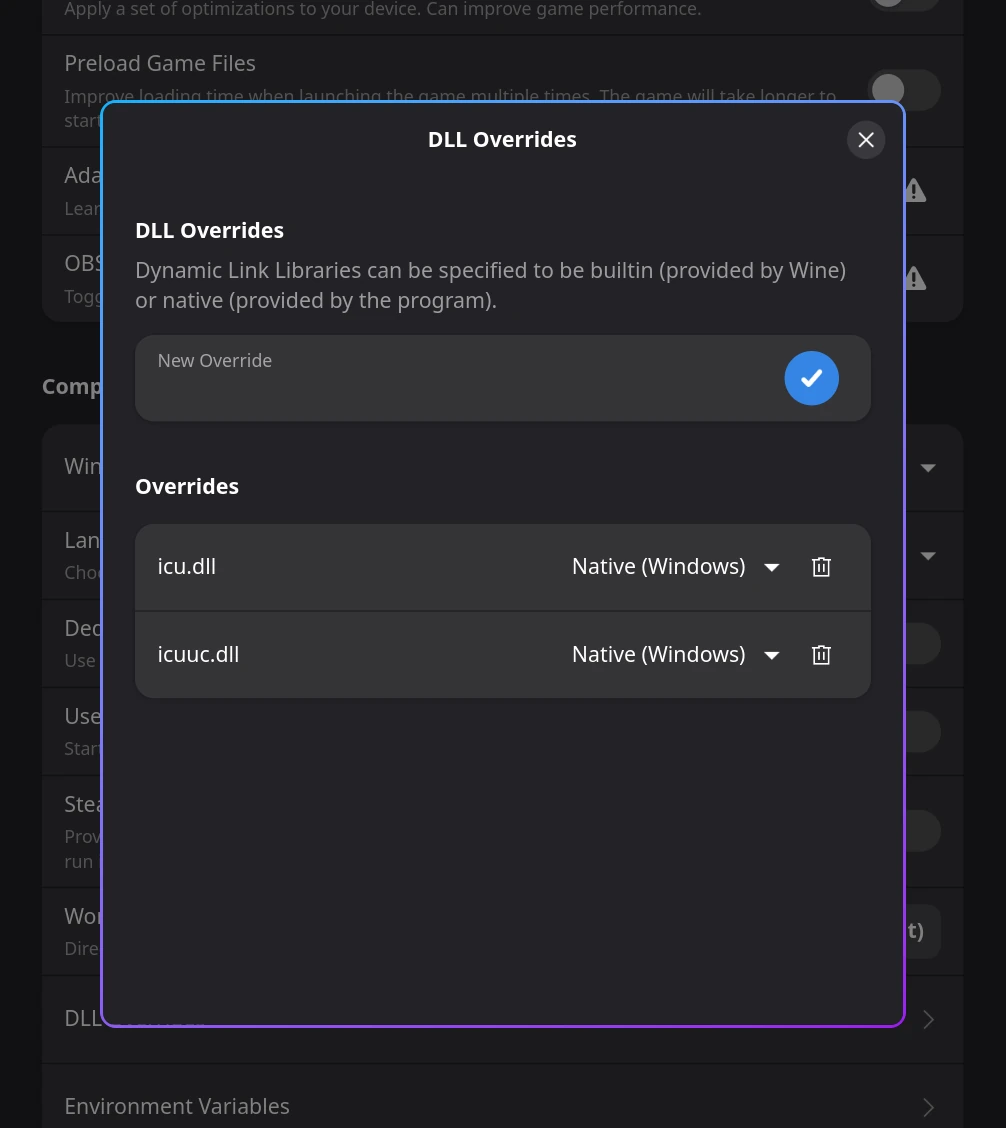
Launch Game Studio. Finally, we can launch the editor using our prefix.
In Bottles, click the ➕ Add shortcuts... button and select the Game Studio executable from
drive_c/users/<nameOfUser>/.nuget/packages/stride.gamestudio/<engineVersion>/tools/net10.0-windows7.0/Stride.GameStudio.exe.Tip
Change the name of the shortcut to include the engine version in order to not loose track.
You should now be up-and-running. If the editor is still not working for you, go check out Troubleshooting.
Troubleshooting
As stated previously, this way of using the engine isn't supported, so you might run into some problems. Here are a few of them with solutions/workarounds:
There is a hidden window
You might encounter this problem when using multiple displays with different scalling. As a workaround, you can enable virtual desktop, which will create a fake desktop environment for the window.
In Botles, you can do this by going to Settings > Display > Advanced Display Settings > Virtual Desktop. This can also be adjusted per-shortcut.
StrideSetup.exe crashed before finishing
As mentioned in the installation steps, this shouldn't cause any issues, as long as it managed to install the prerequiseties.
Game Studio says to install the .NET Runtime
This might mean that either:
- You missed a step during installation and didn't run the .NET SDK setup.
- You need to run the setup for a newer version of .NET
- Game Studio isn't detecting .NET due to the version of Proton/Wine you are using.
To fix this, you will have to either re-run the Windows .NET SDK installer, try installing a newer version of the Windows .NET SDK or try changing the runner your prefix is using.
Game Studio crashes on launch
There could be a lot of reasons to why this happens, so it's better to try running Game Studio from the command line.
In Bottles, go to Tools > Command Line and try launching Game Studio with the following command.
dotnet drive_c\users\<nameOfUser>\.nuget\packages\stride.gamestudio\<engineVersion>\tools\net10.0-windows7.0\Stride.GameStudio.dll
Can't recognize 'dotnet' as an internal or external command
This means that your prefix doesn't have the .NET 10 runtime installer.
To fix this, try re-running the Windows .NET SDK installer as shown in the installation steps.
Errors related to .dll files
This might be caused by Game Studio trying to use native Linux versions of some libraries, instead of the Windows ones. You will have to override those DLLs and set them to explicitly use the Windows version.
In Bottles, go to Settings > Compatibility > DLL Overrides and add the broken DLLs to the list. You can now set their overrides to Native (Windows).
Note
Make sure to restart the terminal before trying again!
It magically works!
This means that Game Studio can't detect the .NET runtime, likely caused by the runner your prefix is using. Try changing to a different version and retry.
My problem isn't listed here
In that case, you can do the following:
- Try changing the runner your prefix is using.
- Try asking on the Stride discord for help — someone might have experienced the same problem.
- Retry the guide with a fresh prefix.